Kioskys at work
Five real setups for an iPad on a counter, a wall or a shelf. Each one is a ready-made configuration: scan its QR code with the iPad and it runs.
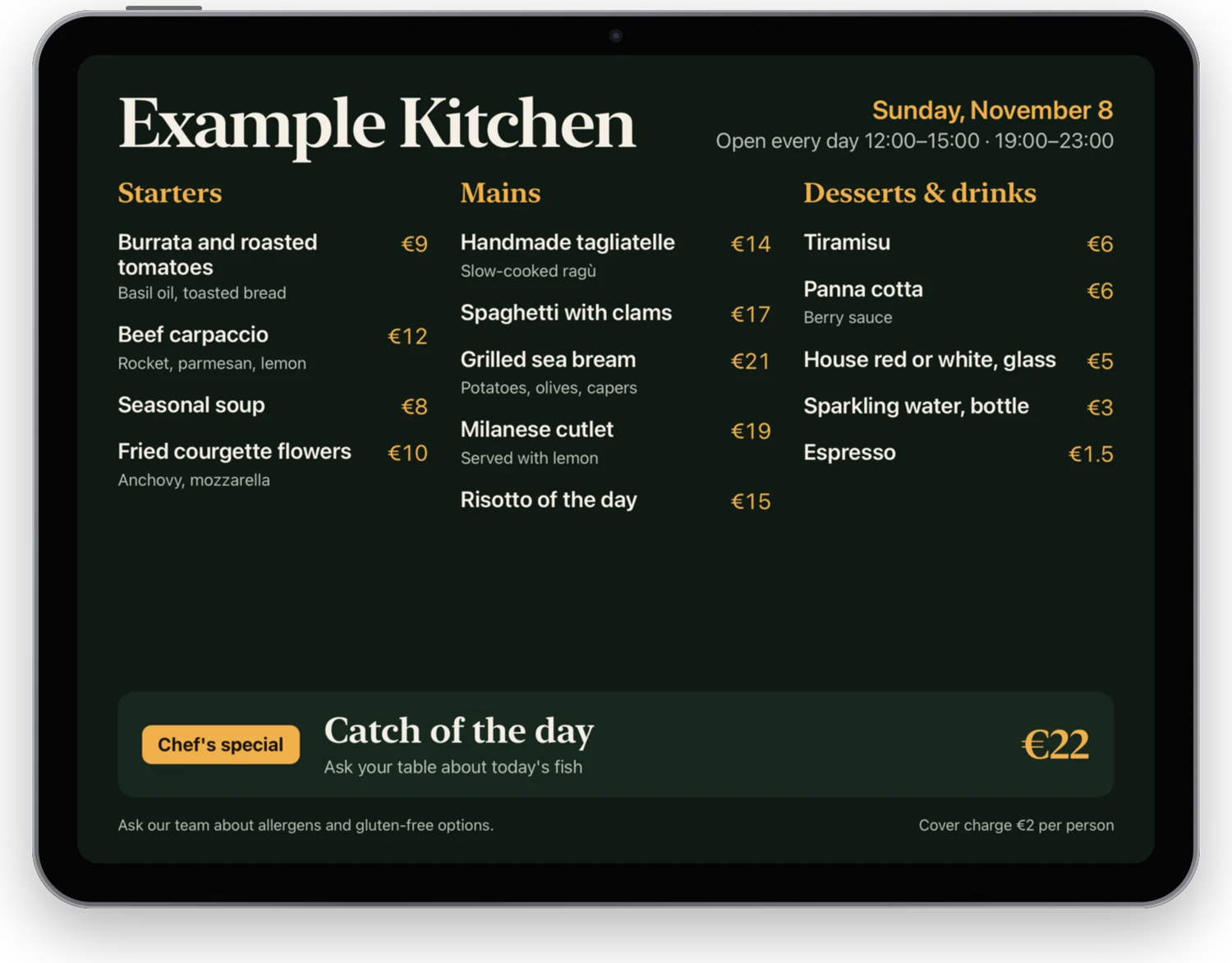
Restaurant menu
A menu board that never needs a refill.
- On screen
- The menu, a dessert photo and a short video, one after the other.
- By itself
- Opens at 11:30, closes at 23:30 and goes dark in between. Photos and video are saved on the iPad.
- Reads
- Nothing: it only shows.
Scan this code with the iPad Camera app.
You are on an iPad: tap the button and Kioskys opens with this setup.
Clinic check-in
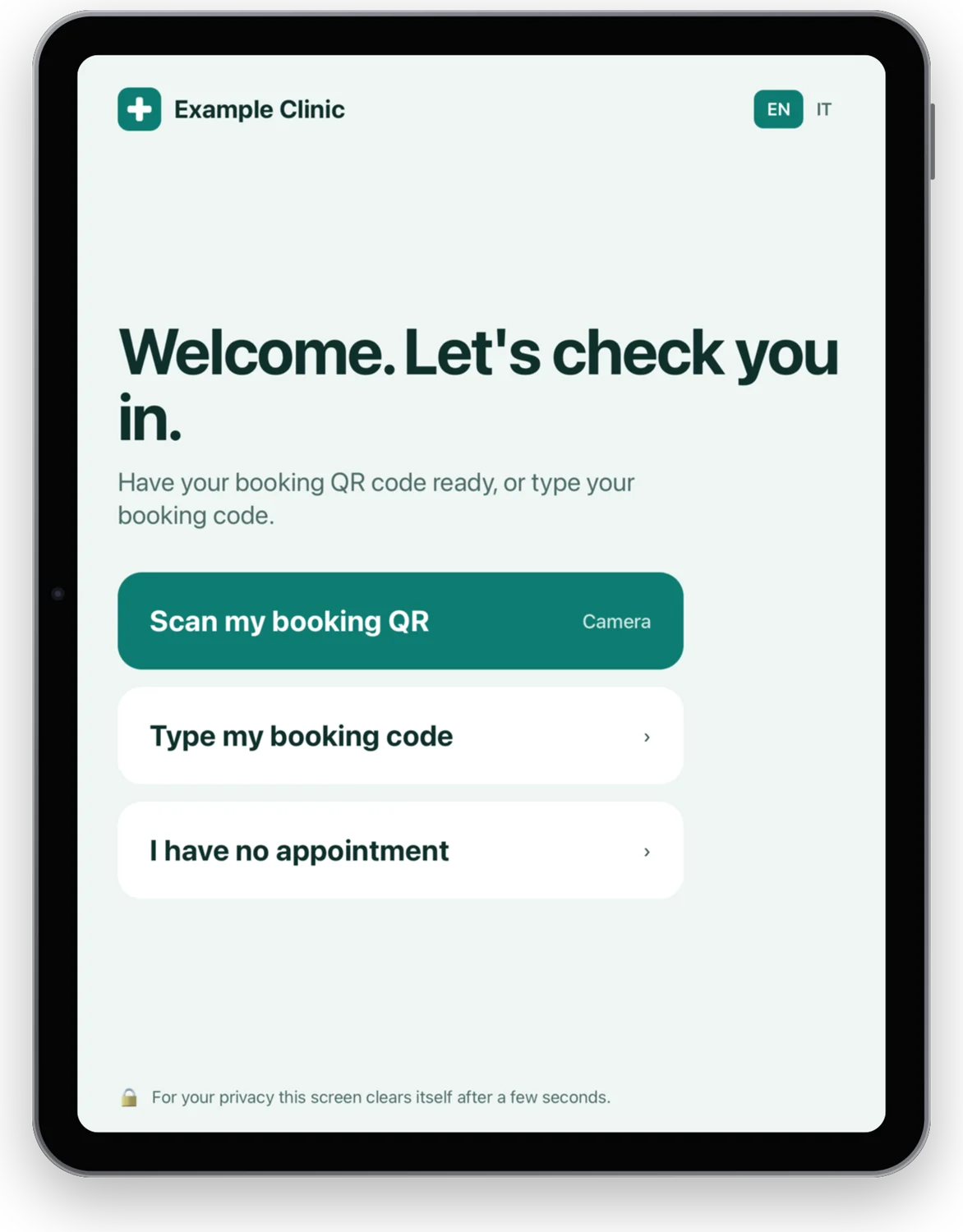
A reception desk that forgets the last patient.
- On screen
- A check-in desk in two languages, with a booking-code field.
- By itself
- Wipes the screen after 45 seconds, so the next patient starts clean. Outside reception hours it shows a closed screen.
- Reads
- The booking QR code on the patient's phone.
Scan this code with the iPad Camera app.
You are on an iPad: tap the button and Kioskys opens with this setup.
Hotel arrival
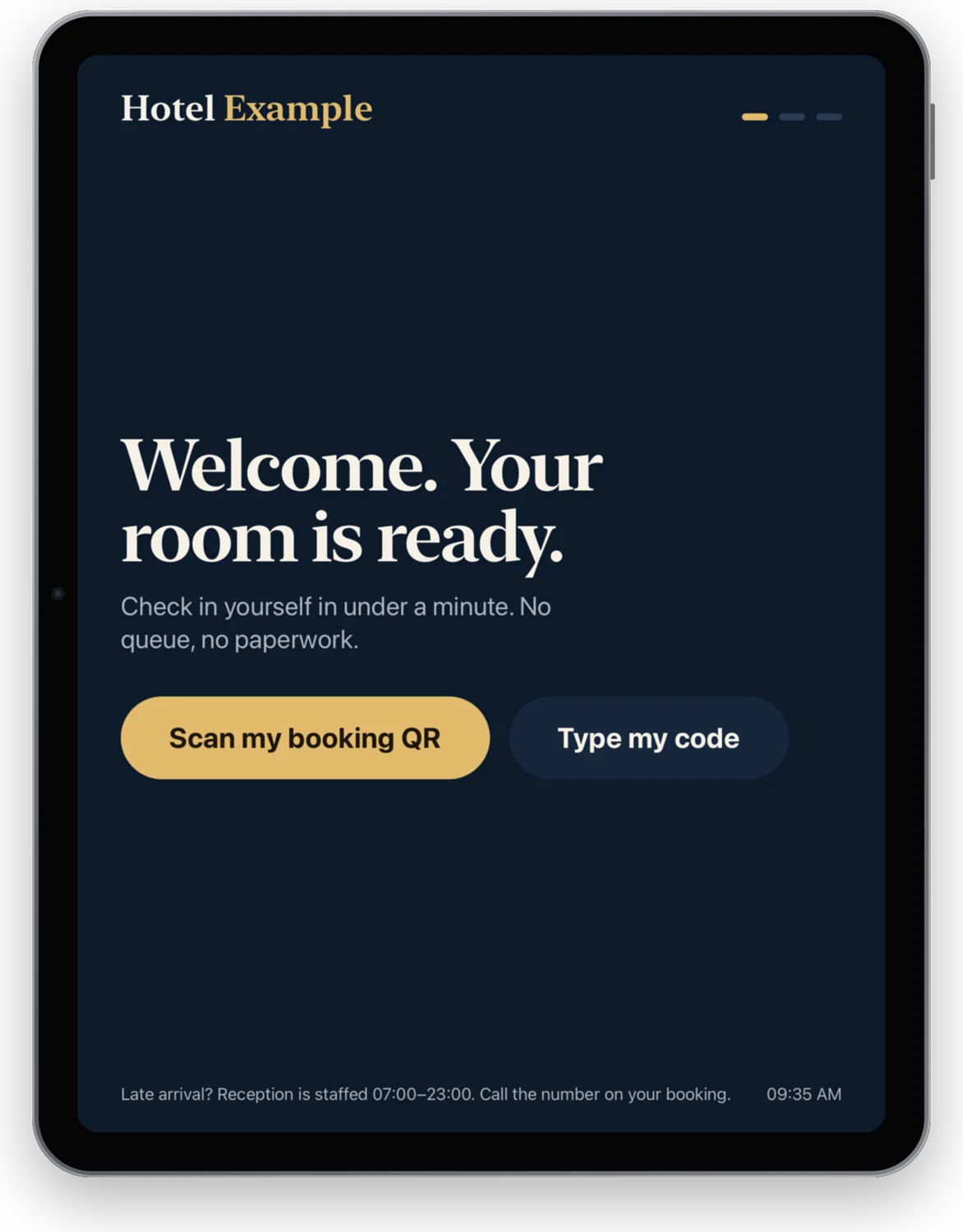
Self check-in without a queue.
- On screen
- Three steps: scan, confirm, collect the key.
- By itself
- Returns to the welcome screen after a minute and erases the previous guest.
- Reads
- The booking QR code from the confirmation email.
Scan this code with the iPad Camera app.
You are on an iPad: tap the button and Kioskys opens with this setup.
Factory floor
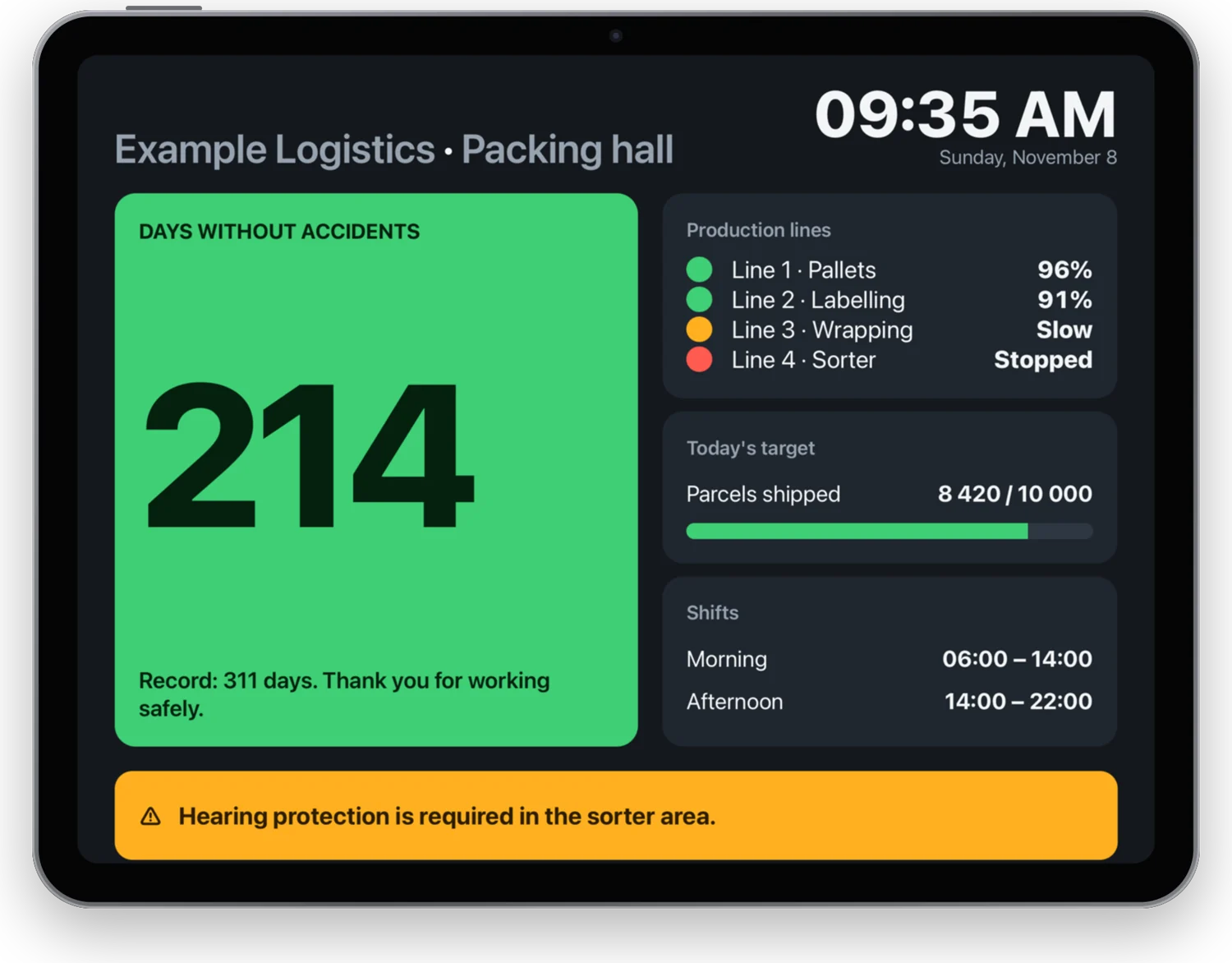
A board the whole shift can read from across the room.
- On screen
- Days without accidents, line status, shifts and notices.
- By itself
- Stays bright, reloads itself and sleeps outside the shifts.
- Reads
- Nothing: it only shows.
Scan this code with the iPad Camera app.
You are on an iPad: tap the button and Kioskys opens with this setup.
Warehouse picking
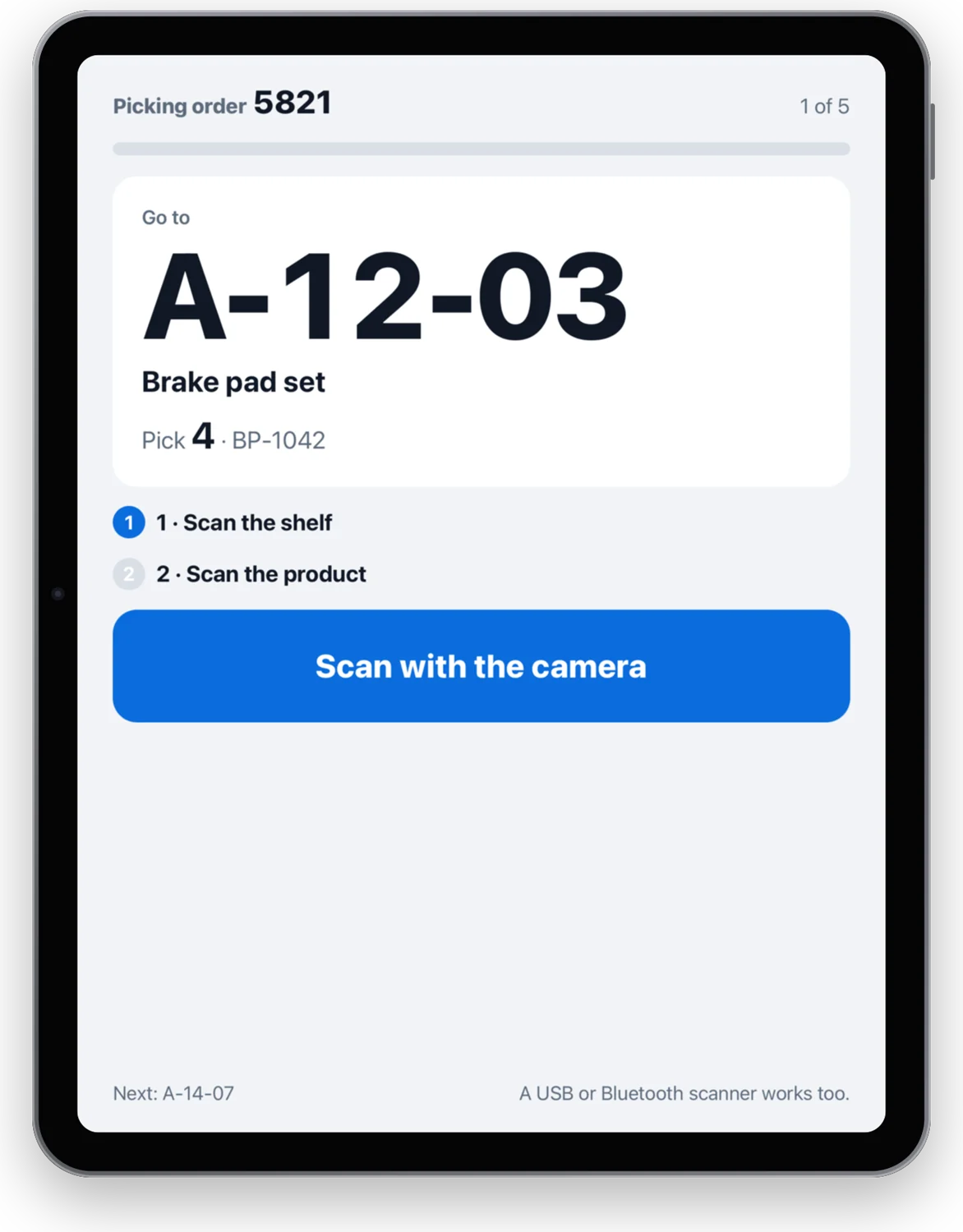
A picking list that checks every scan.
- On screen
- Go to the shelf, scan it, scan the product.
- By itself
- Beeps right or wrong, moves to the next line and starts over after the last.
- Reads
- Barcodes with the rear camera, or a USB or Bluetooth scanner.
Scan this code with the iPad Camera app.
You are on an iPad: tap the button and Kioskys opens with this setup.
Try one in a minute
Pick a setup
Choose one above. Open this page on a computer, or on the iPad itself.
Scan its code
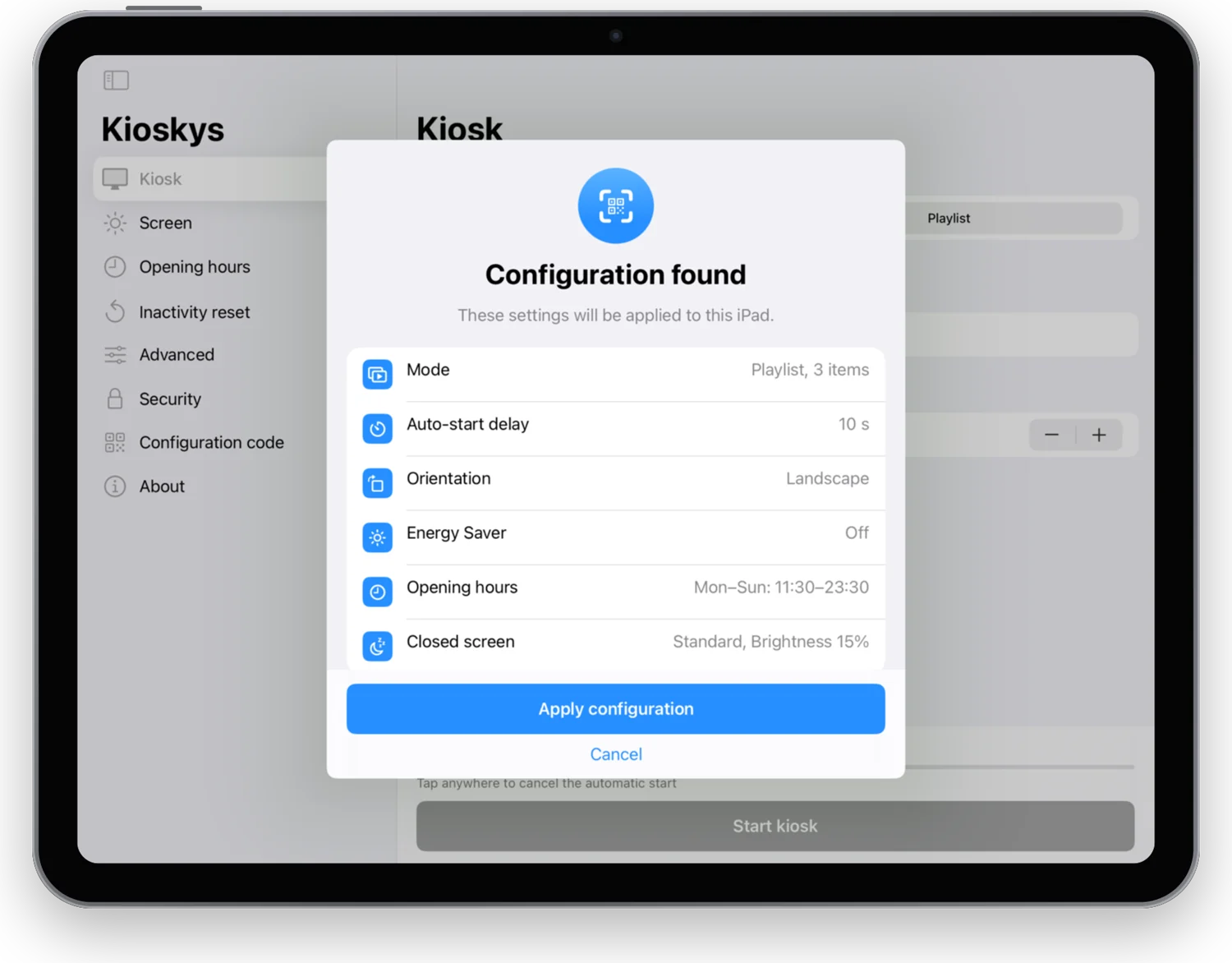
Point the iPad Camera at the QR code. Kioskys opens and shows what will change.
Confirm and start
Tap Apply configuration, then Start kiosk. You can undo everything from the settings.
What every setup uses
Plays by itself
Pages, photos and videos in a loop. The files are saved on the iPad, so nothing buffers and it keeps playing when the Wi-Fi drops.
Opens on time
Set the hours for each day. Outside them the iPad shows your closed screen at the brightness you choose.
Starts clean
When the last visitor walks away it returns to the first page and erases their session.
Reads any code
QR codes and barcodes with the iPad camera, or a USB or Bluetooth scanner. Your web page decides what happens next.
One iPad. Any counter.
One purchase on the App Store. No subscription, no account.
Get KioskysEvery screen on this page was captured on a real iPad. Company names and figures in the examples are invented.